Compare two versions of a project
To see what changed across a whole project — how many files, classes, and functions were added,
removed, or modified, where that change concentrated, and how it altered the dependencies — point
Understand at a comparison database: a second .und holding an earlier version of the same code.
That database can be an existing analysis you kept, or one Understand creates for you from a specific
Git commit.
Pick the tool to match the question
| You want to… | Use |
|---|---|
| Count what was added, changed, and removed in a component | Metrics Browser, View By: Comparison Summary |
| List every changed entity | Changed Entities Locator |
| See where change concentrated | Changes Treemap |
| See how the architecture and its dependencies changed | Architecture and dependency graphs, Compare variant |
| See exactly how one entity changed | Side-by-side diff, entity graphs, metric deltas |
Set the comparison database
Open Compare → Comparison Projects to manage comparison databases in one panel. The table lists each comparison database with its Project name and analysis Status. Its toolbar:
| Action | What it does |
|---|---|
| Open Project | Use an existing .und as the comparison database. |
| New Git Project | Create a comparison database from a Git commit (see below). |
| Analyze | (Re-)analyze the selected comparison database. |
| Close / Remove | Close it, or remove it from the list (the file is not deleted). |
| Locate Changed Entities | Open the Changed Entities Locator. |
A project cannot be compared with itself, so opening the current project as its own comparison is rejected.
Create a comparison database from a Git commit
Choose New Git Project to open the New Project from Git dialog. Fill in:
- Git Repository — the repository directory.
- Git Commit — the commit hash (use the … button to browse commits).
- Database Name — where to save the new
.und(defaults next to your project, suffixed with the commit). - Configure settings after creation — optionally open the project configuration afterwards.
Click Create Project. Understand builds a read-only database whose file contents are read from that commit, then adds it as a comparison database. (Note: only file contents come from the commit — the set of files to analyze is not auto-derived from the commit, so start from a project configured for the same code.)
What changed
Change counts for an architecture or the project
Select an architecture — start at the root of Directory Structure for the whole code base, then drill into its folders — and set the Metrics Browser's View By to Comparison Summary. For an architecture or the project, it shows:
- New, Changed, and Removed counts of files, classes, functions, and subprograms — for
example
CountDeclFileNew,CountDeclFunctionChanged, andCountDeclClassRemoved. Modules, program units, and executable units have the same three counts. - The line churn totalled across the files it contains:
CountLineNew,CountLineRemoved,CountLineChanged, andPercentChanged.
A file that moved into or out of an architecture counts as new or removed for that architecture, along with everything in it. These metrics are grouped under the Compare category in the metrics catalog.
Changed Entities Locator
Compare → Locate Changed Entities (or the panel's Locate Changed Entities button) opens a filterable list of the entities that differ between the two versions. Each row carries a Status:
| Status | Meaning |
|---|---|
| Added | Present now, absent in the comparison version. |
| Removed | Present in the comparison version, gone now. |
| Changed | Present in both, but the source text differs. |
The line-churn columns — New Lines (CountLineNew),
Removed Lines (CountLineRemoved), Changed Lines
(CountLineChanged), and Percent Changed
(PercentChanged) — are shown by default, along with Change in Lines (DiffCountLine). More
metric deltas can be turned on as extra columns.
Added and removed entities are colour-coded in the list; you can change those colours on the Colors settings page.
Where it changed
- Compare → Changes Treemap paints one box per changed file, class, or function, sized and coloured by how much it changed. Group the boxes by an architecture to see which components carried the change — see Where did the churn happen? the Changes Treemap.
- The Architecture graph in its Compare variant shows the architecture's hierarchy: added architectures and files are green, removed ones are red, and files whose contents changed have a thick border.
- The File Dependencies graph in its Compare variant shows the file-level dependencies within an architecture: a green edge is a new dependency, a red edge is one that is gone, and a blue edge is one whose references changed.
- The Dependencies graph's Butterfly (Compare) variant shows how the architectures the selected one depends on, and is depended on by, have changed.
How an entity changed
- Selecting a changed entity in the Changed Entities Locator, the Changes Treemap, or a graph's Compare variant opens a side-by-side diff of its old and new source.
- Entity graphs offer Compare variants that draw both versions at once, with added/removed/modified entities and references color-coded — most default graphs have one; see the graph catalog.
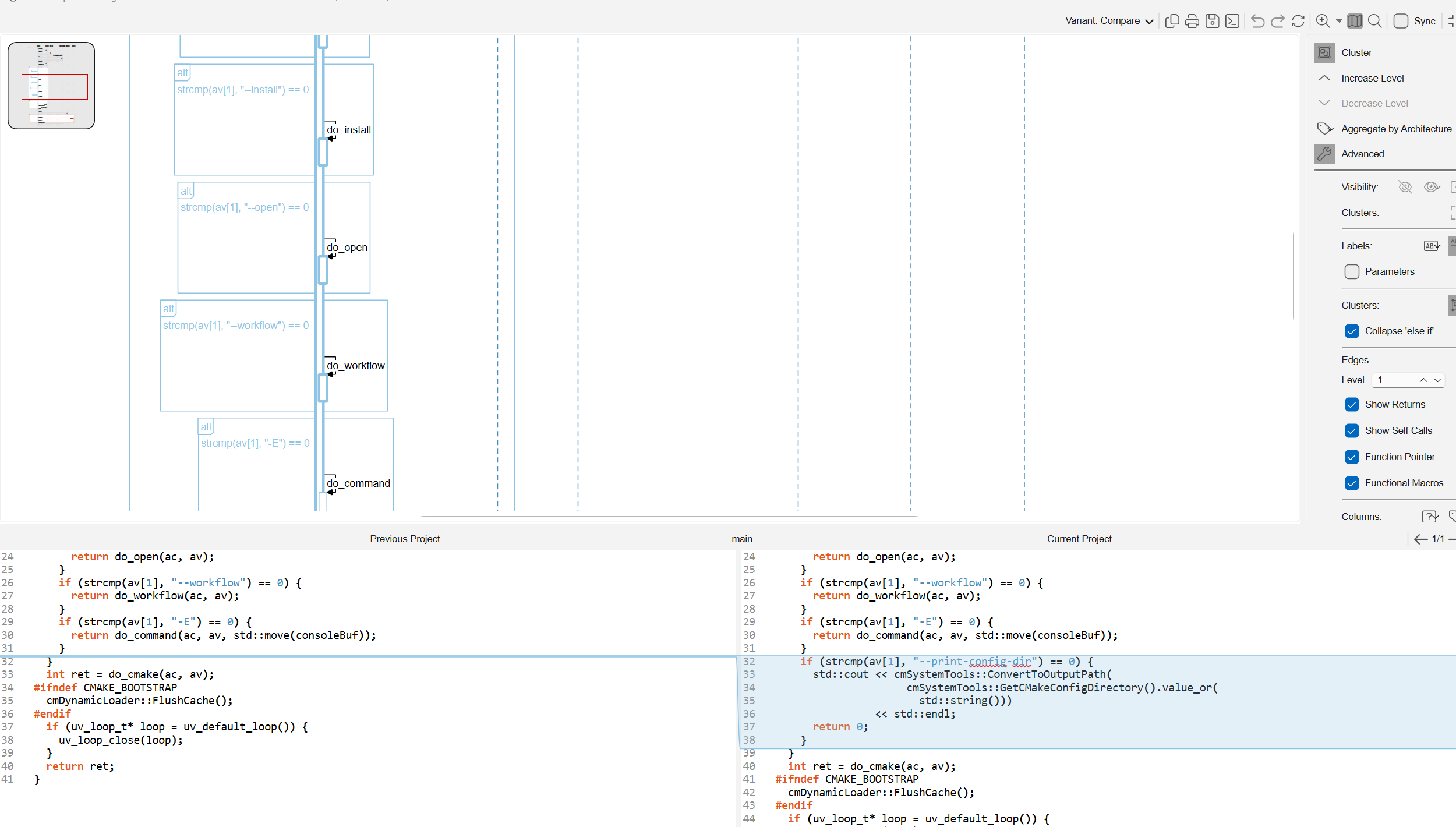
--print-config-dir block is highlighted.Metric deltas
Any ordinary entity metric can also be shown as a delta using a Diff-prefixed name —
DiffCountLine, DiffCyclomatic, DiffCountPath, etc. — computed as current − comparison and
signed (negative means it shrank). Deltas are calculated for files, classes, functions, and other
entities, not for architectures or the project.
How changes are counted
Changes come from a textual diff of each entity's source, so only entities with lines are compared — files, functions, classes, methods, and the like. Line-less entities such as objects and variables, and multi-file entities such as namespaces, are never compared and so never count as added, removed, or changed. A changed entity counts once in the New/Changed/Removed counts, however many of its lines changed.
The line metrics split each changed region of the diff:
| Metric | Counts |
|---|---|
CountLineChanged |
The lines a region has in common: the smaller of its added and deleted line counts. |
CountLineNew |
Added lines beyond the deleted ones — so a pure insertion is all new lines. |
CountLineRemoved |
Deleted lines beyond the added ones — so a pure deletion is all removed lines. |
PercentChanged |
(New + Removed + 2×Changed) / (current + comparison lines) × 100. |
For an architecture or the project, an added file contributes all of its lines as new, and a removed file all of its lines as removed.
From the command line
Set the comparison database (or Git repository) headlessly with
und settings:
und settings -comparisonprojectpath baseline.und myProject.und
und settings -gitrepositorydirectory /path/to/repo myProject.und
Create a commit-pinned database directly with und create:
# File contents are read from <githash>; without -refdb no files are added for you.
und -db baseline.und create -gitcommit <githash> -gitrepo /path/to/repo -languages C++
-refdb <project.und> copies an existing project — settings and its file set, which is then
rescanned against the pinned commit — and registers the new database as that project's comparison
database. It's usually what you want for a baseline, since the two projects then cover the same files.
Export the changed entities
Export a CSV based on the Changed Entities Locator with
und export -changes. Like a default
metrics export, each entity is a row and each metric is a
column. Prefer this over a metrics export with change metrics enabled, because this export includes
removed entities, and a normal metrics export can only include entities in the current project.
Baselining CodeCheck violations is separate
To ratchet violations (flag only new ones against a previous inspection) rather than compare code, see Baseline existing violations.